Course materials · Robot Basic Lab

Image file processing

English translation

clear variables;

Image file processing

img_rgb = imread('Lenna.png');
disp('Display image')
Display image
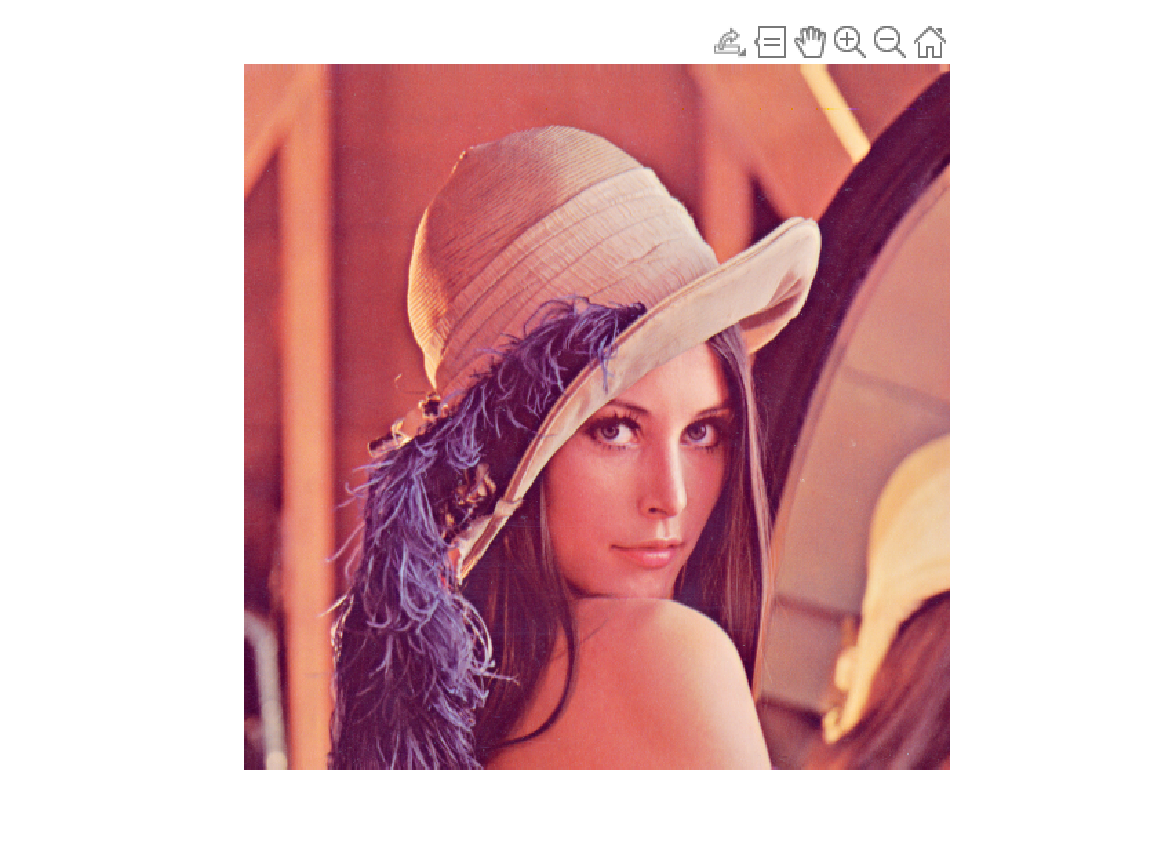
imshow(img_rgb)
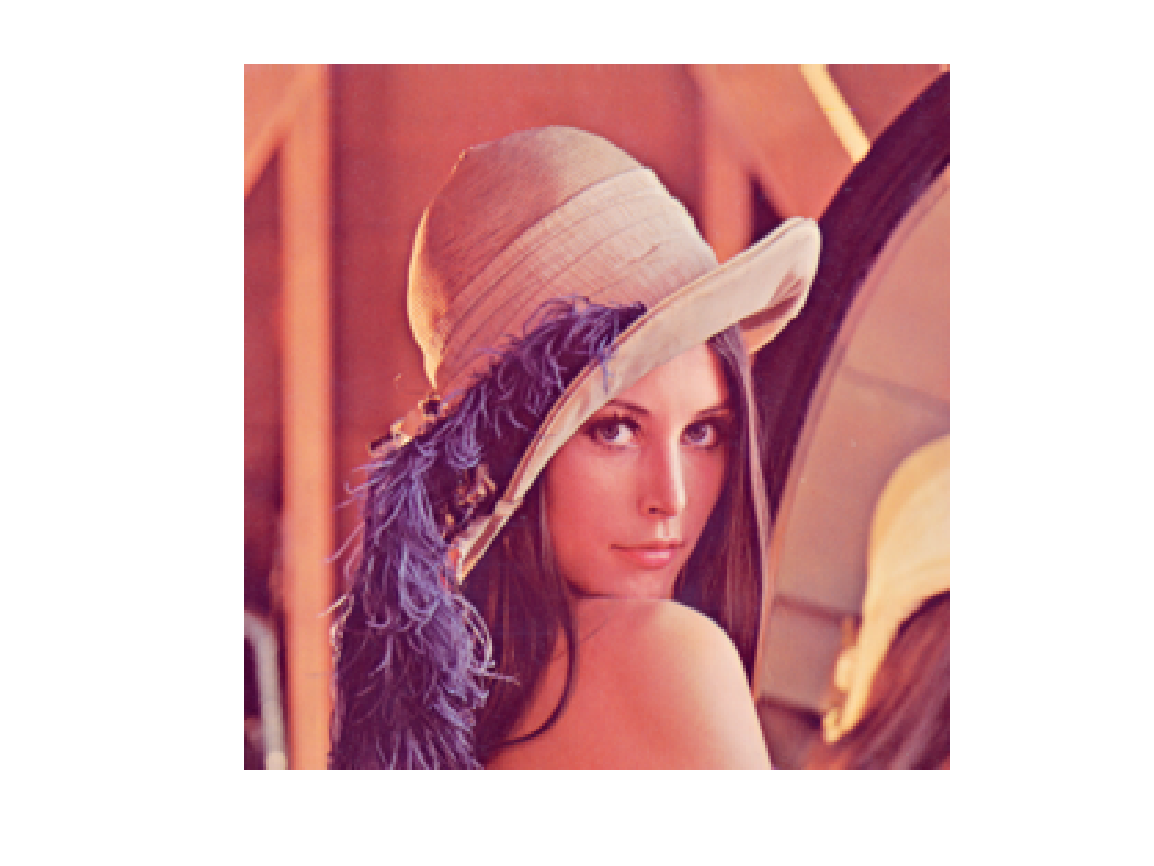
Original RGB sample image, showing a person wearing a hat with feathers against a reddish background.

Convert an image to grayscale

img_gray = rgb2gray(img_rgb);
disp('Display grayscale image')
Display grayscale image
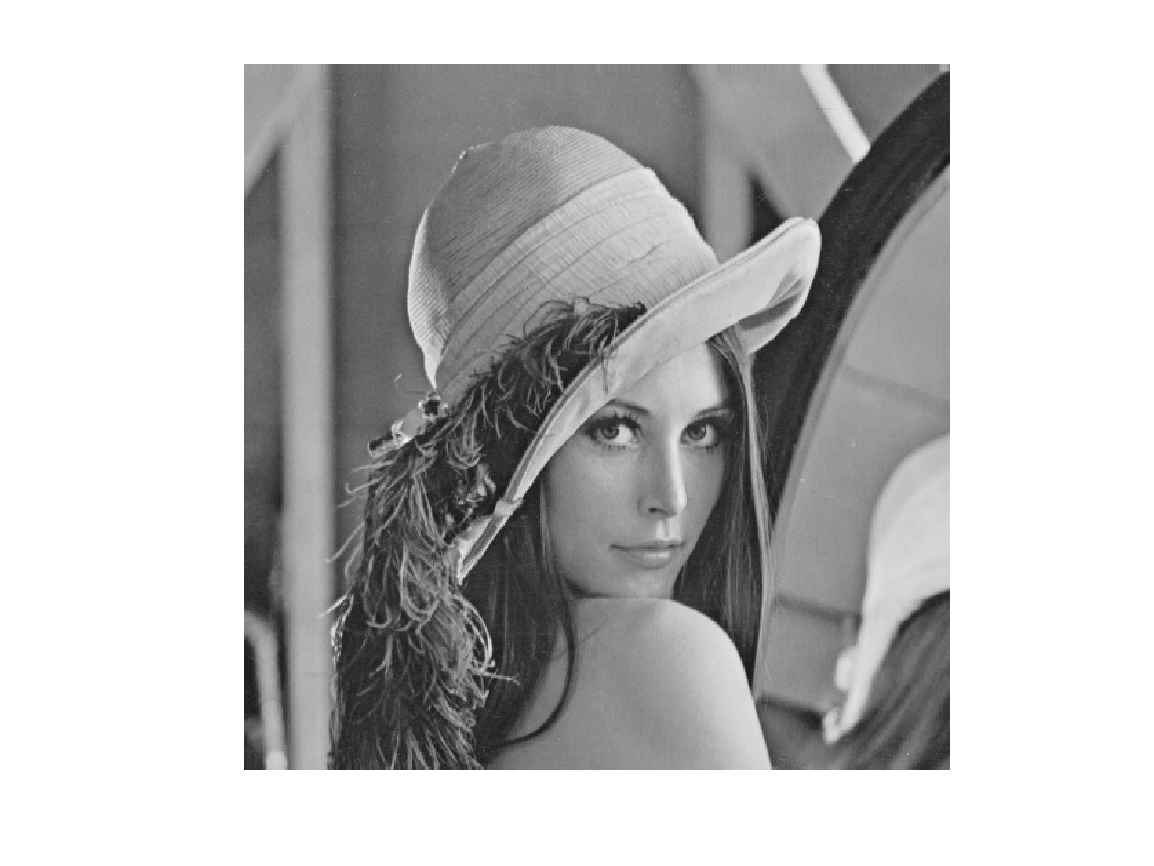
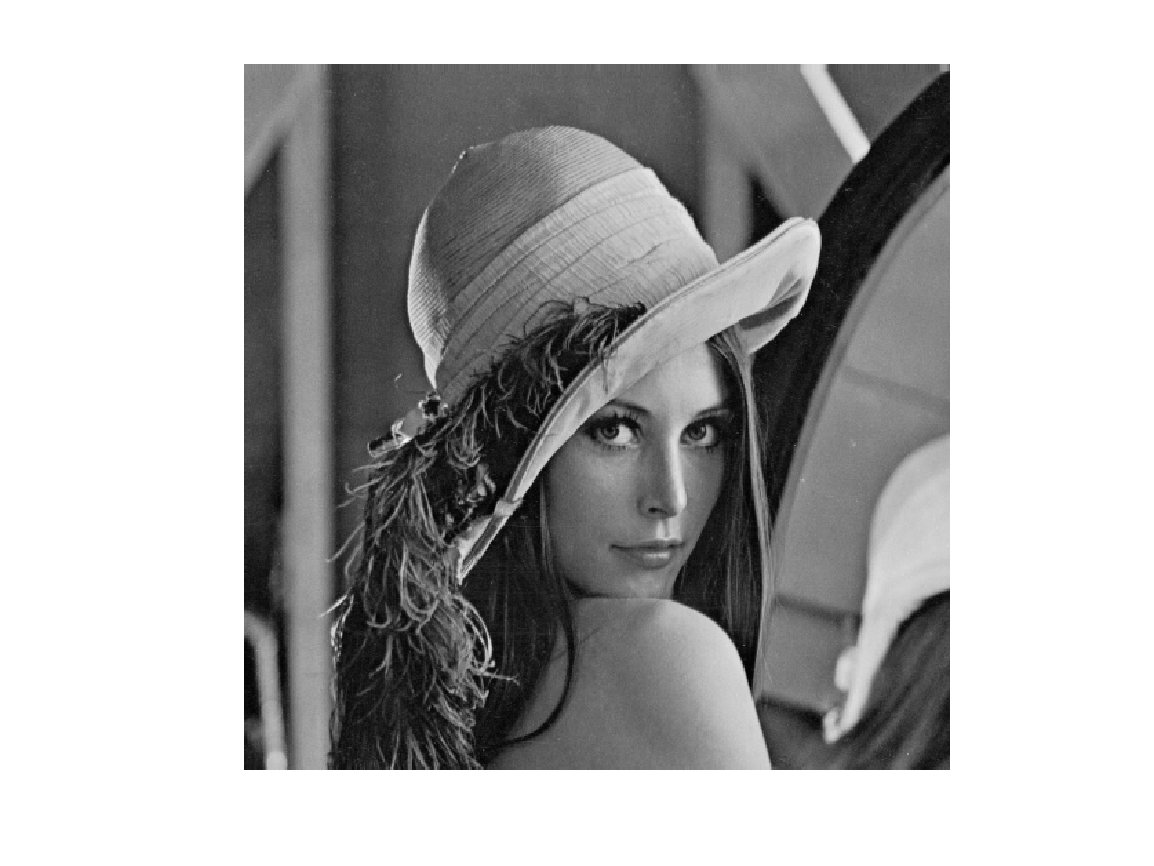
imshow(img_gray)
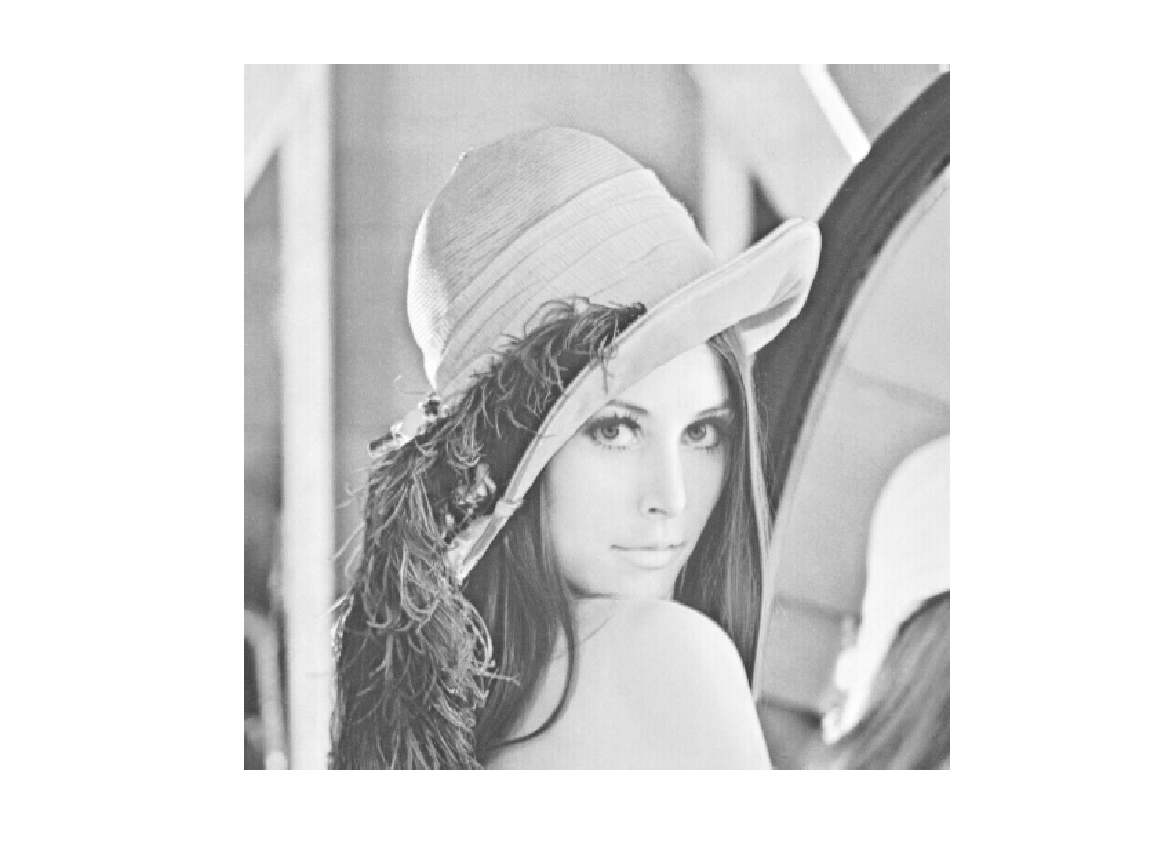
Grayscale image produced from the RGB original using rgb2gray. The hat and portrait are represented by intensity rather than color.

Arithmetic operations on grayscale image matrices

disp('Display brighter grayscale image')
Display brighter grayscale image
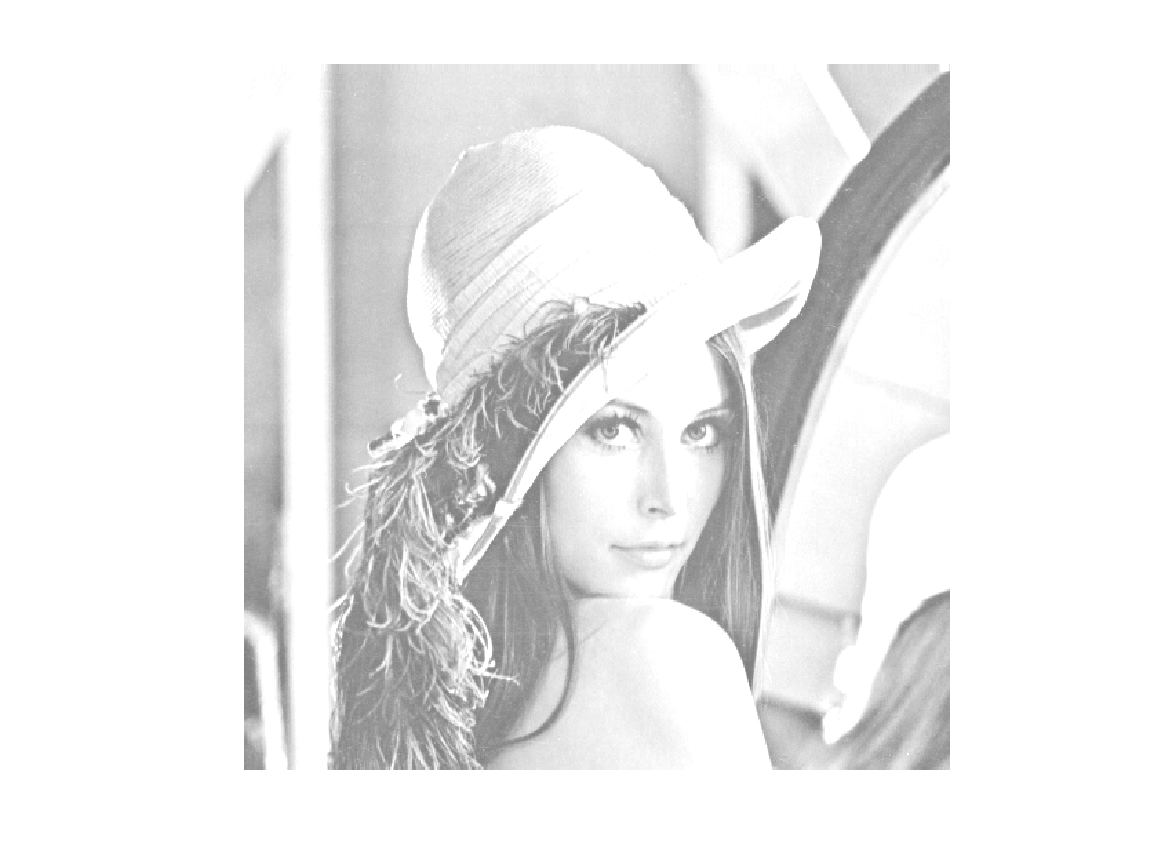
imshow(img_gray+100)
Grayscale image displayed after adding 100. It is brighter than the original, with bright areas of the hat and face appearing close to white.

Separate RGB image channels

r = img_rgb(:, :, 1);
g = img_rgb(:, :, 2);
b = img_rgb(:, :, 3);
disp('Display r-channel grayscale image')
Display r-channel grayscale image
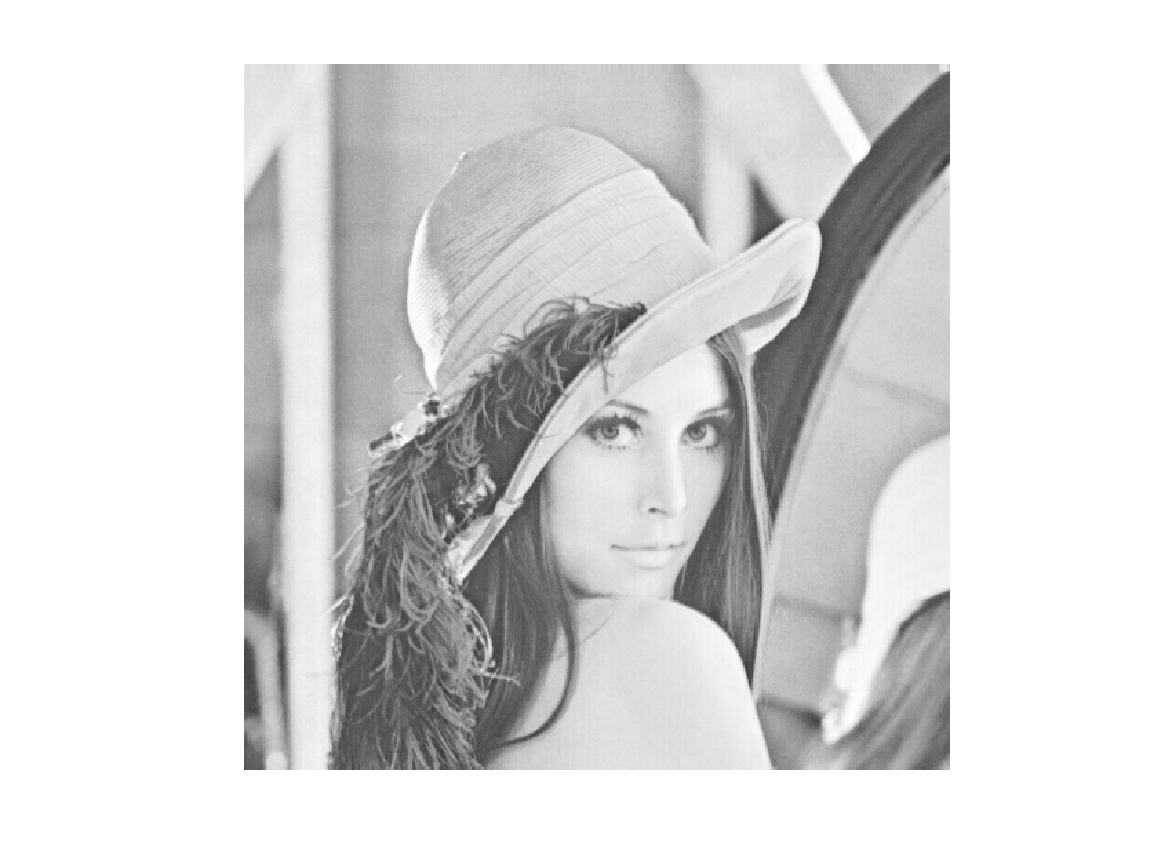
imshow(r)
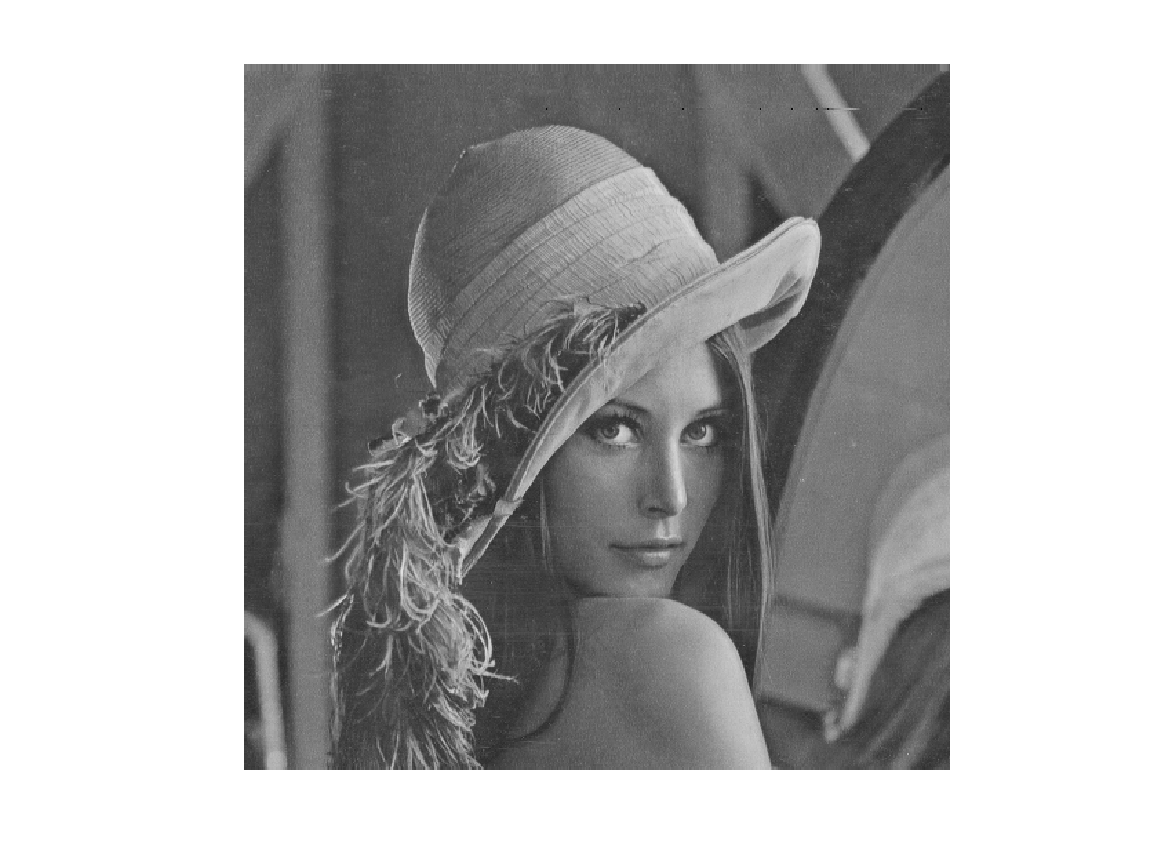
The R channel of the RGB image displayed in grayscale.
disp('Display g-channel grayscale image')
Display g-channel grayscale image
imshow(g)
The G channel of the RGB image displayed in grayscale.
disp('Display b-channel grayscale image')
Display b-channel grayscale image
imshow(b)
The B channel of the RGB image displayed in grayscale.

Arithmetic operations on RGB image matrices

img_rgb_r = img_rgb;
img_rgb_g = img_rgb;
img_rgb_b = img_rgb;
img_rgb_r(:, :, 1) = img_rgb_r(:, :, 1) + 100;
img_rgb_g(:, :, 2) = img_rgb_g(:, :, 2) + 100;
img_rgb_b(:, :, 3) = img_rgb_b(:, :, 3) + 100;
disp('Display r-channel reinforced image')
Display r-channel reinforced image
imshow(img_rgb_r)
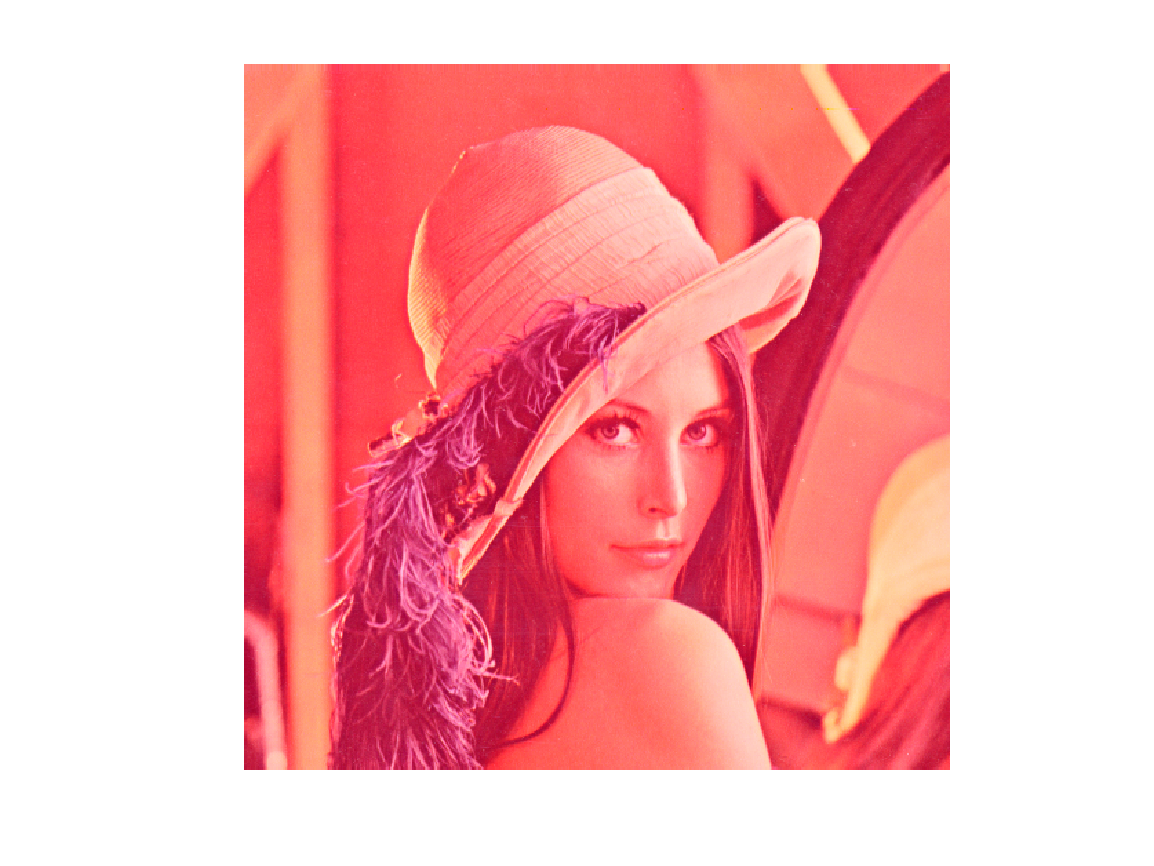
Result of adding 100 to the R channel of the original RGB image, giving the image a strong red tint.
disp('Display g-channel reinforced image')
Display g-channel reinforced image
imshow(img_rgb_g)
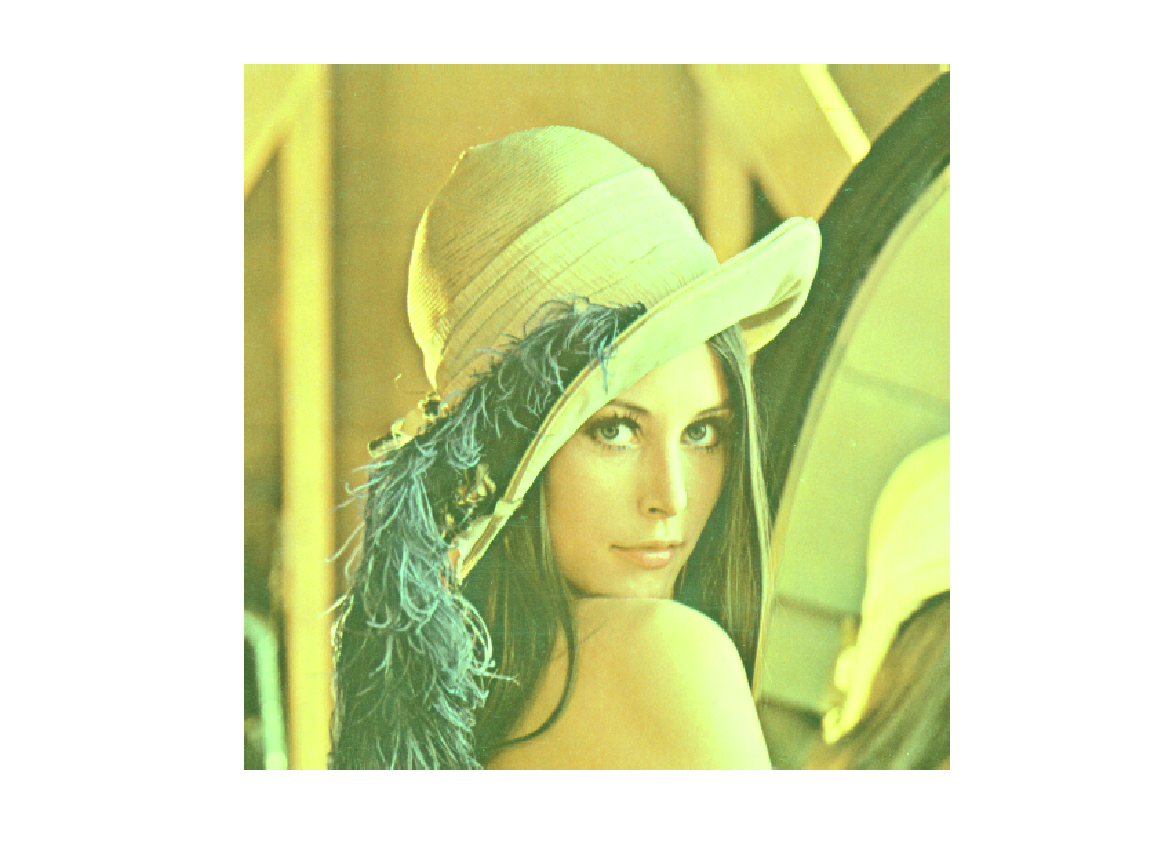
Result of adding 100 to the G channel of the original RGB image, giving it a strong green and yellow tint.
disp('Display b-channel reinforced image')
Display b-channel reinforced image
imshow(img_rgb_b)
Result of adding 100 to the B channel of the original RGB image, giving it a strong blue and purple tint.

Elementwise operations on RGB image matrices

img_rgb_1 = img_rgb;
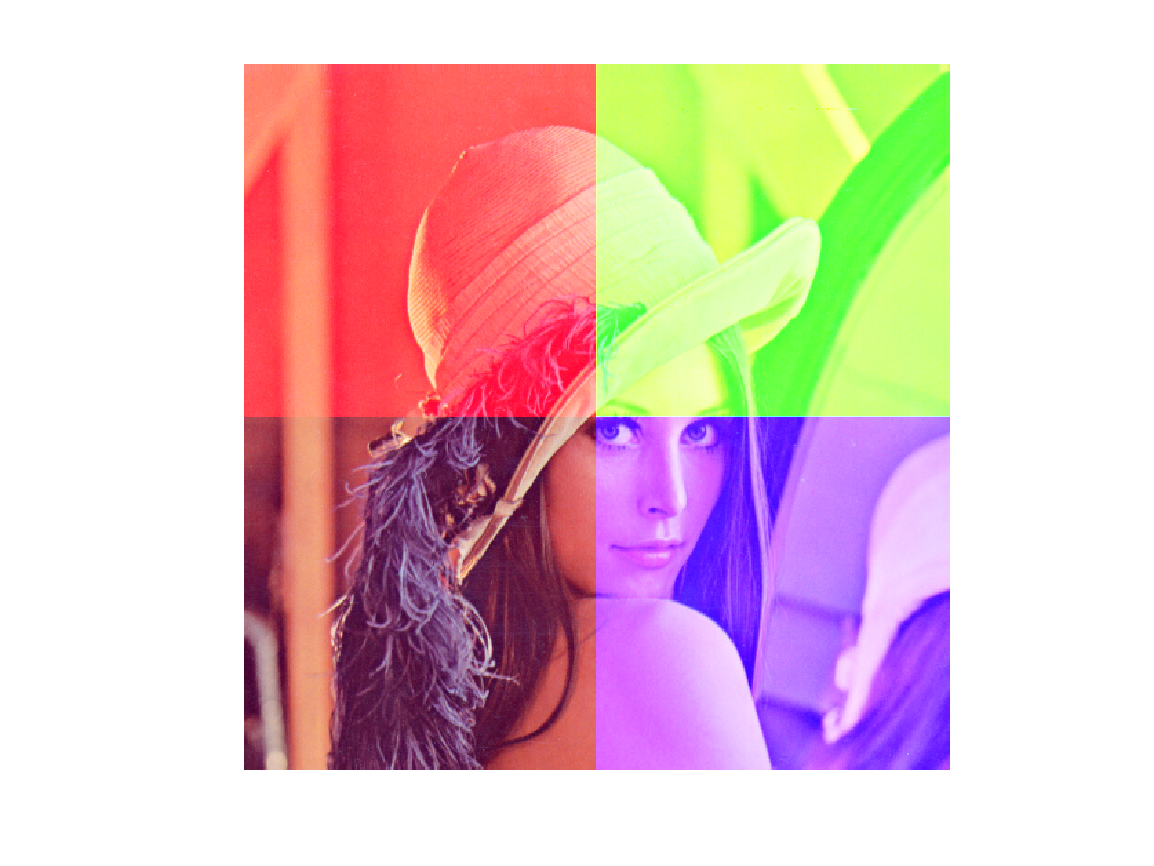
img_rgb_1(1:256, 1:256, 1) = 255; % Quadrant 2, R channel
img_rgb_1(1:256, 256:end, 2) = 255; % Quadrant 1, G channel
img_rgb_1(256:end, 256:end, 3) = 255; % Quadrant 4, B channel
disp('Display element-wise edited image')
Display element-wise edited image
imshow(img_rgb_1)
Image with region-wise RGB edits: R is set to 255 at top left, G at top right and B at bottom right. The bottom-left region retains the original colors.

Color space conversion (RGB, HSV)

img_hsv = rgb2hsv(img_rgb);
disp('Display hsv transformed image')
Display hsv transformed image
imshow(img_hsv)
 
h = img_hsv(:, :, 1);
s = img_hsv(:, :, 2);
v = img_hsv(:, :, 3);
disp('Display h-channel grayscale image')
Display h-channel grayscale image
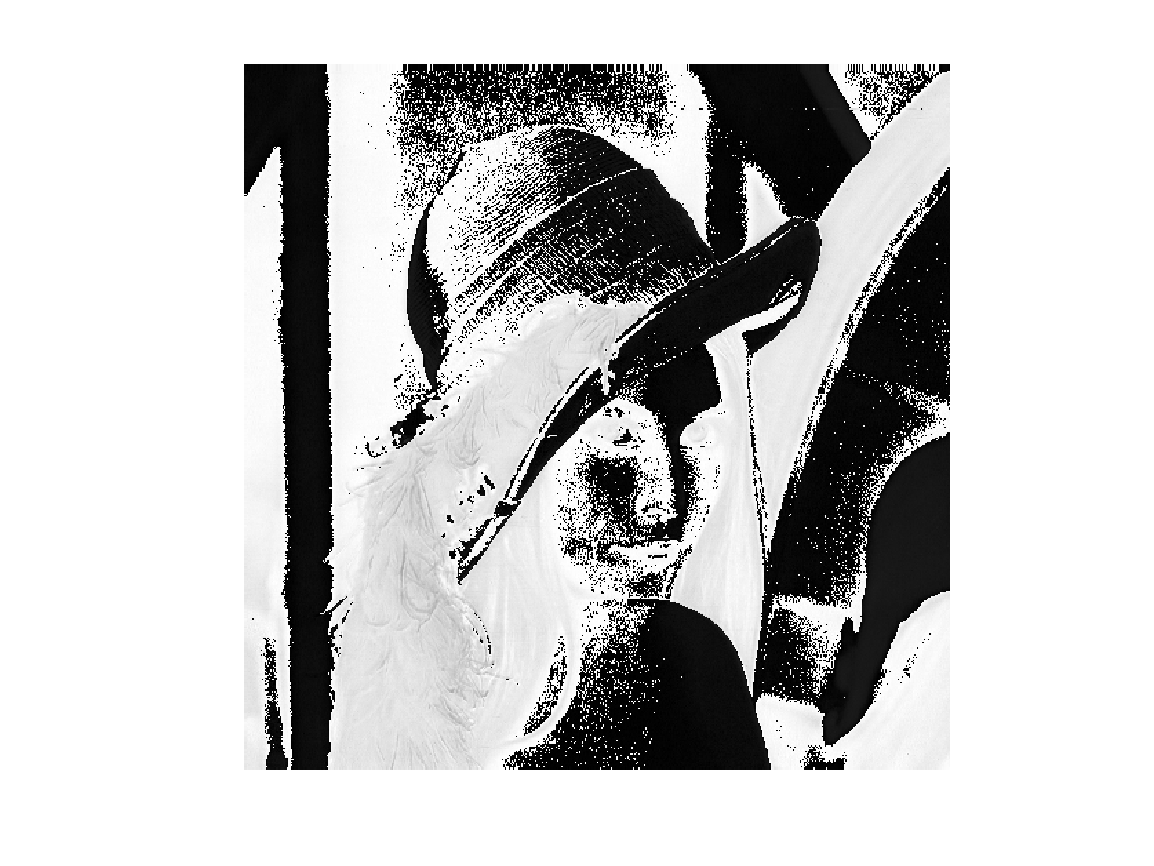
imshow(h)
The H channel of the HSV image displayed in grayscale. Hue values separate the hat and portrait into darker and lighter regions.
disp('Display s-channel grayscale image')
Display s-channel grayscale image
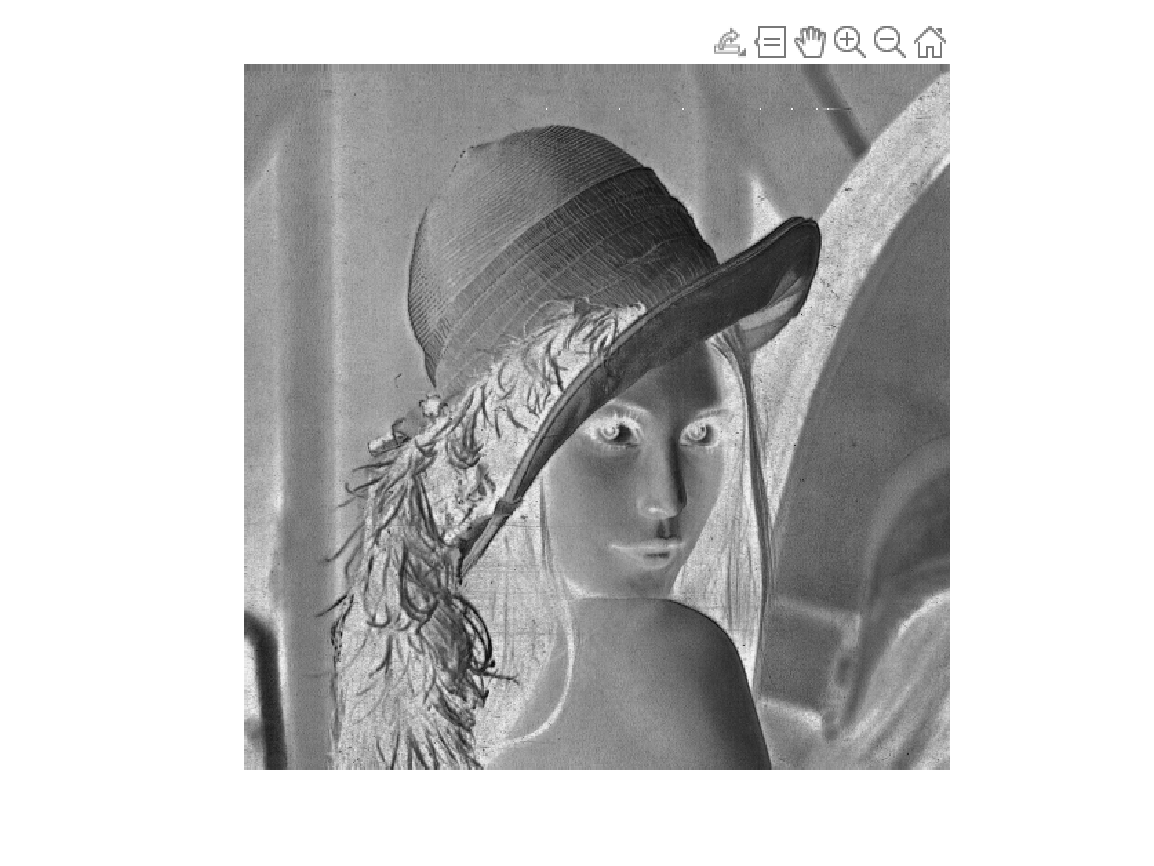
imshow(s)
The S channel of the HSV image displayed in grayscale. Saturation values give the hat and portrait boundaries different intensities.
disp('Display v-channel grayscale image')
Display v-channel grayscale image
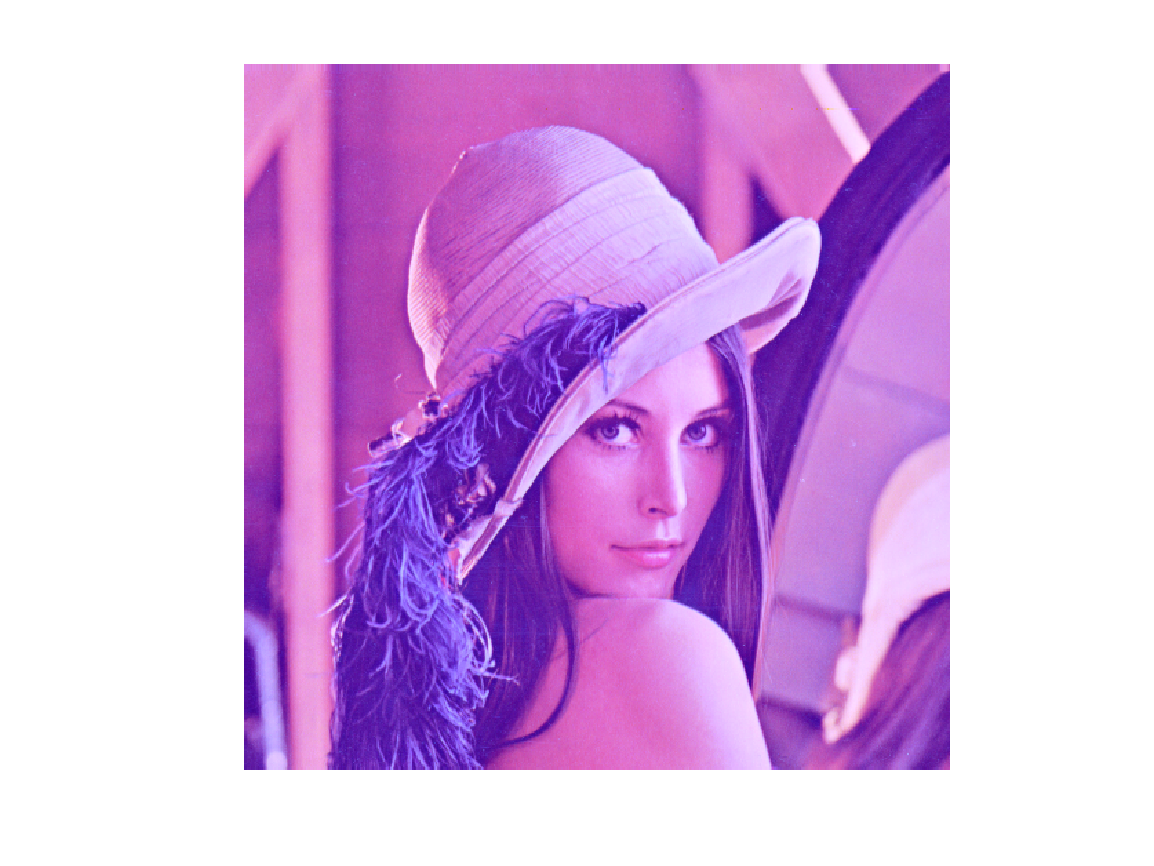
imshow(v)
The V channel of the HSV image displayed in grayscale. The hat and face appear light, while parts of the feathers and background appear dark.

Extract a specific color region in HSV space
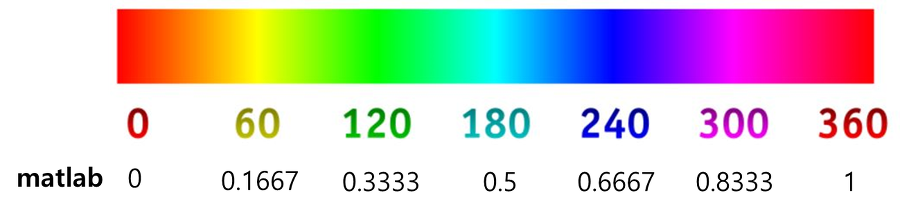
Hue reference chart: a color strip runs through red, yellow, green, cyan, blue and magenta and back to red above an angle scale from 0 to 360 degrees.
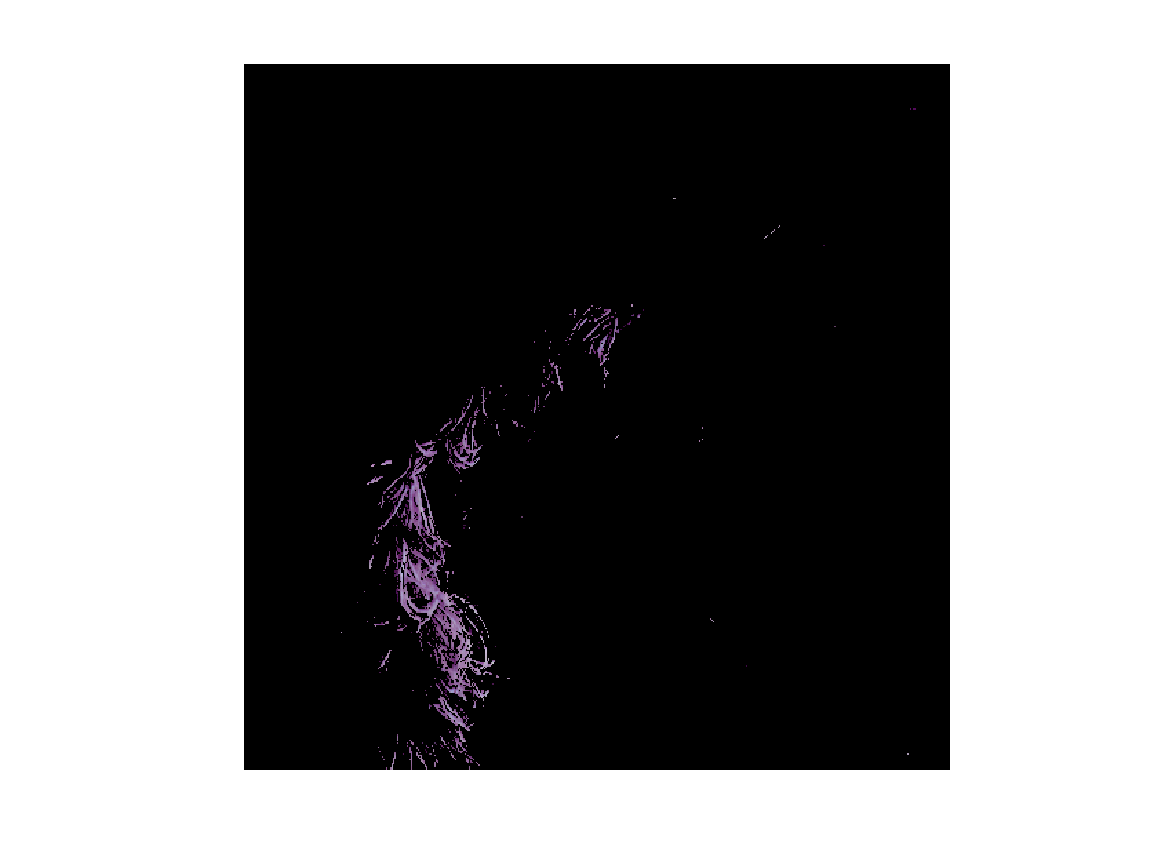
img_h_cut_hsv = img_hsv.*(h>0.67).*(h<0.83); % purple
img_h_cut_rgb = hsv2rgb(img_h_cut_hsv);
disp('Display purple area of the image')
Display purple area of the image
imshow(img_h_cut_rgb)
Image converted back to RGB after retaining only HSV regions with 0.67<h<0.83. Most of the image is black, while parts of the feather decoration remain purple.

Transform images

img_zoom_out = imresize(img_rgb, 0.5);
disp('Display 50% zoom out image');
Display 50% zoom out image
imshow(img_zoom_out)
RGB image resized to 0.5 times its original size with imresize, retaining the original aspect ratio of the hat and portrait.
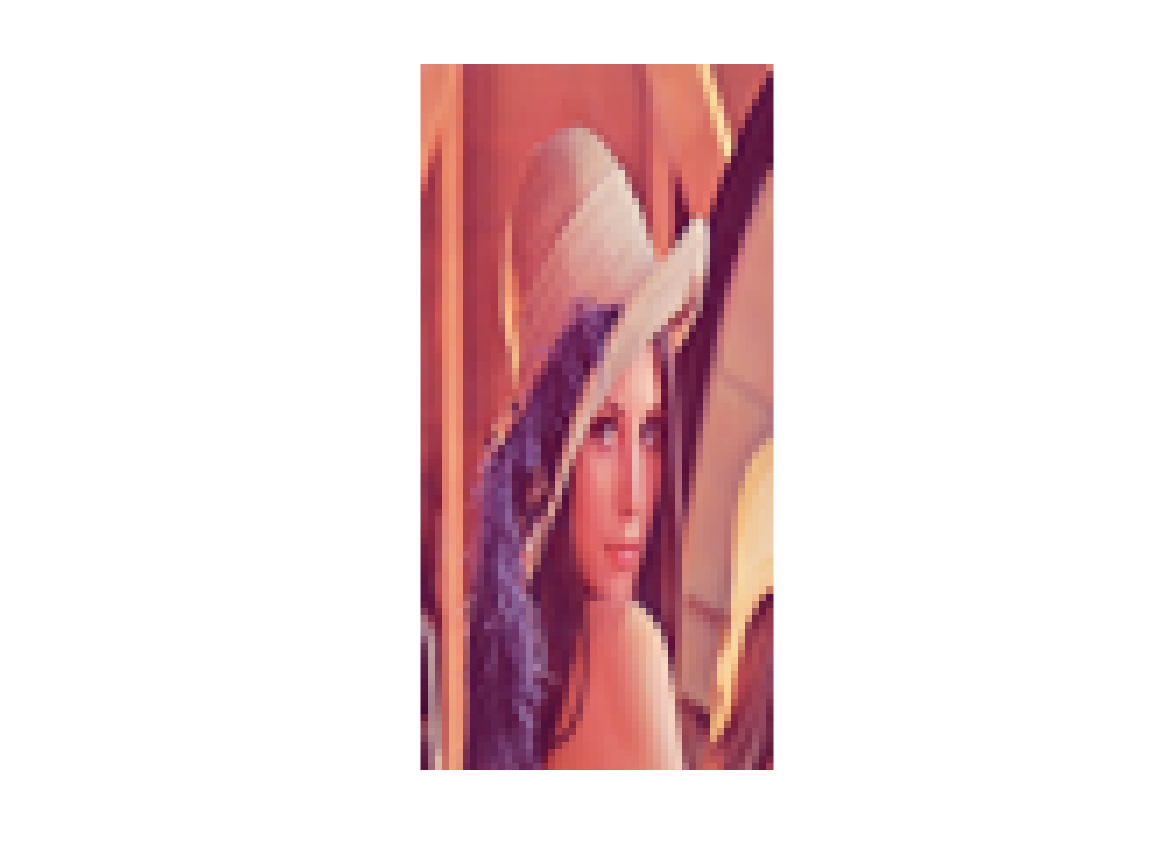
img_trans = imresize(img_rgb, [100 50]);
disp('Display transformed image');
Display transformed image
imshow(img_trans)
RGB image resized to 100 rows and 50 columns. The narrower width makes the hat and portrait appear vertically elongated.
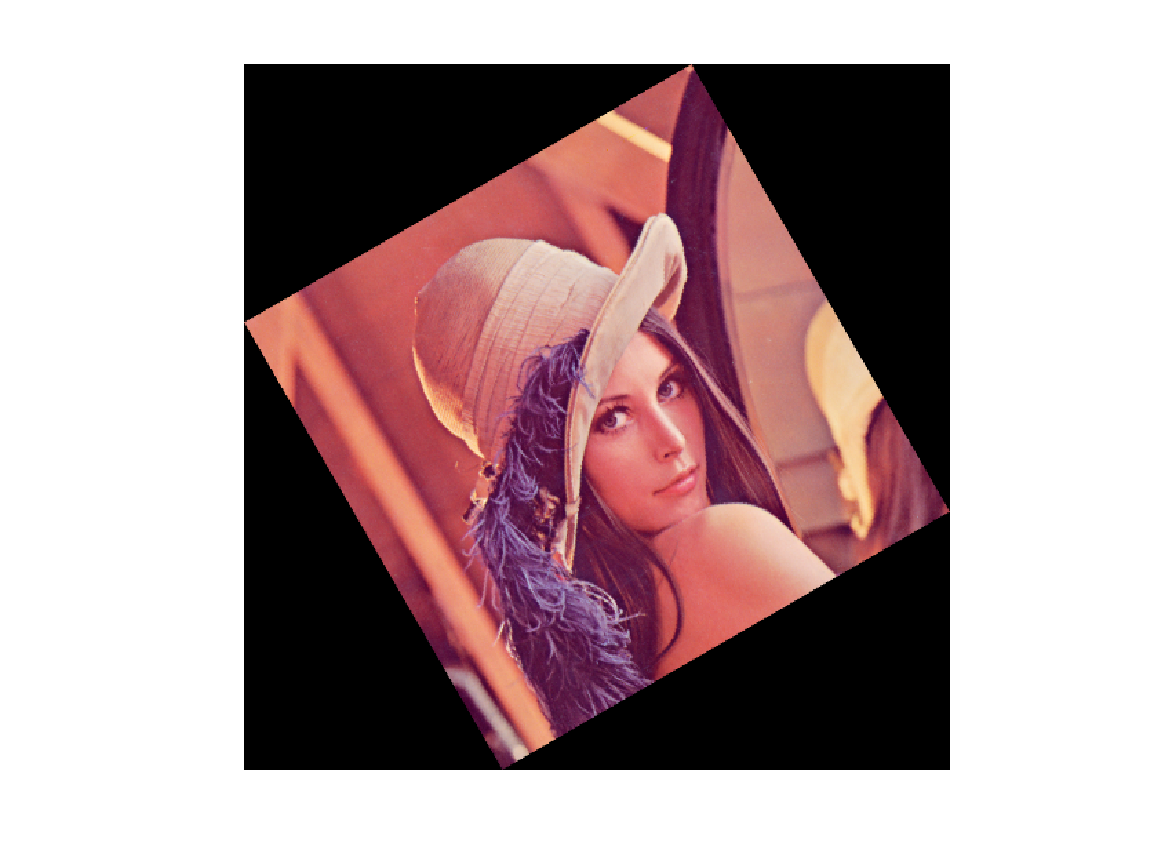
img_rotate1 = imrotate(img_rgb, 30);
disp('Display rotated image');
Display rotated image
imshow(img_rotate1)
Image rotated by 30 degrees. The output area expands to contain the tilted image, leaving black regions at the corners.
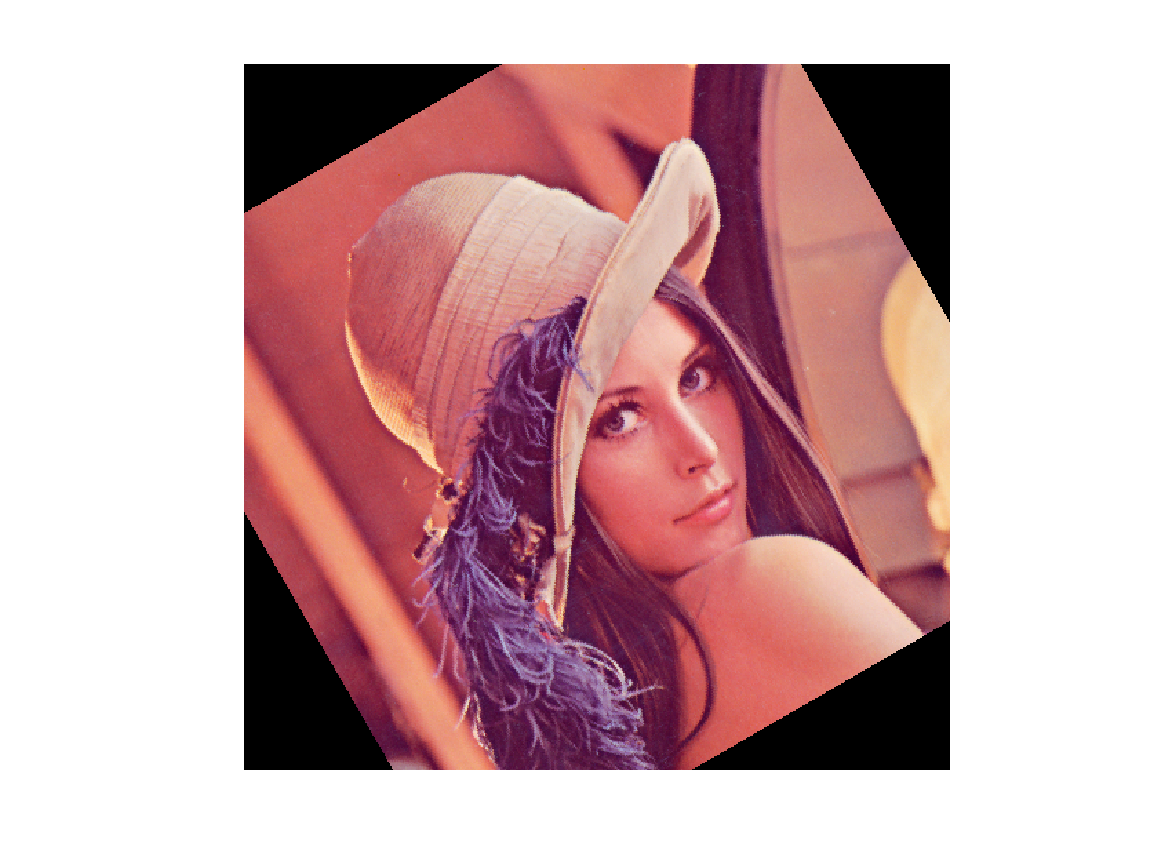
img_rotate2 = imrotate(img_rgb, 30, 'crop');
disp('Display rotated and cropped image');
Display rotated and cropped image
imshow(img_rotate2)
Image rotated by 30 degrees using crop. The output size is retained and outer parts of the tilted image are clipped.
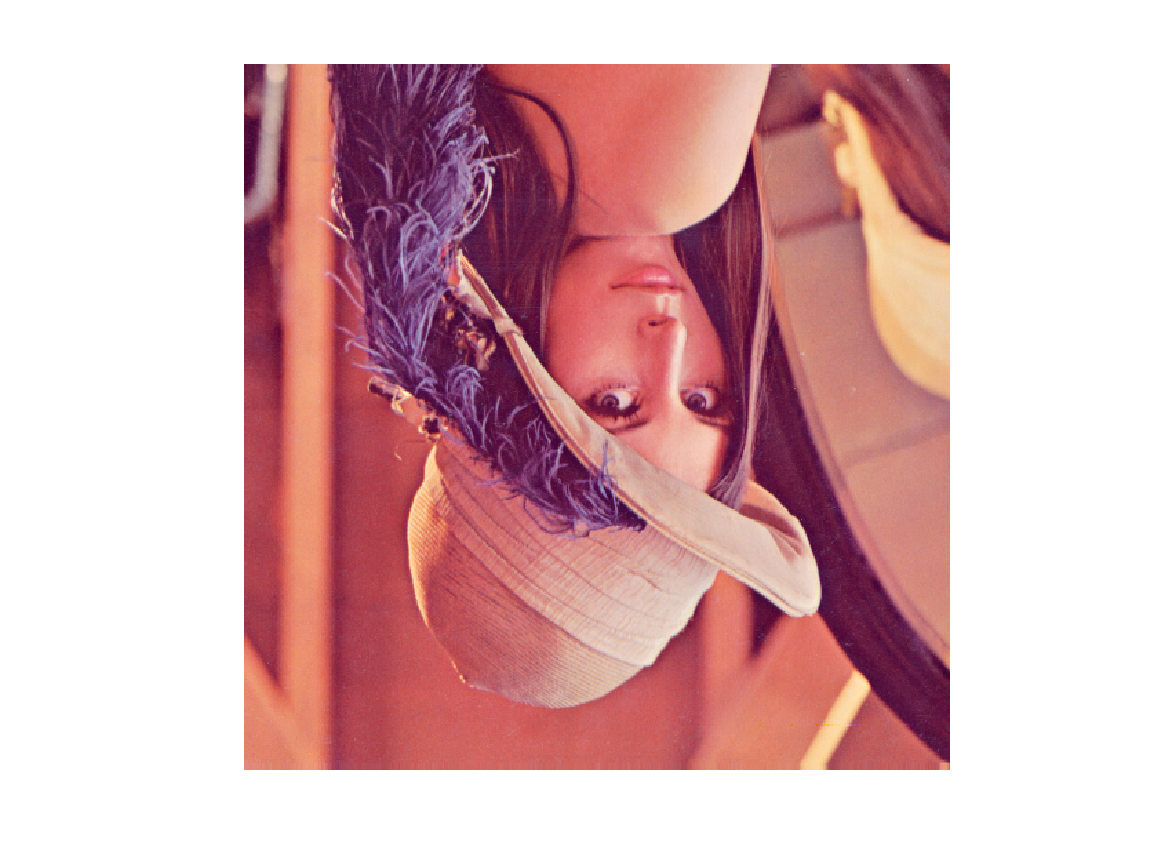
img_flip1 = flip(img_rgb, 1);
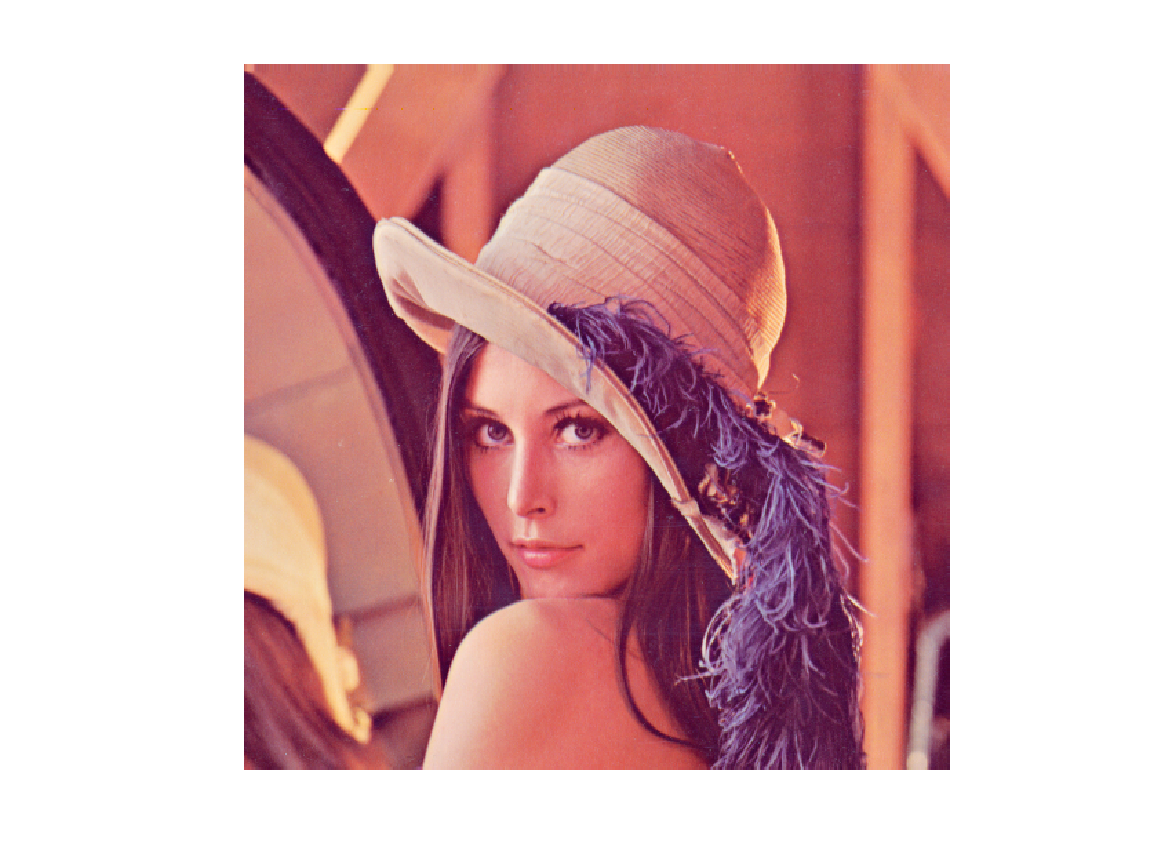
img_flip2 = flip(img_rgb, 2);
disp('Display vertically flipped image')
Display vertically flipped image
imshow(img_flip1)
RGB image flipped vertically with flip(img_rgb,1), showing the hat and portrait upside down.
disp('Display horizontally flipped image')
Display horizontally flipped image
imshow(img_flip2)
RGB image flipped horizontally with flip(img_rgb,2), reversing the left and right sides of the original.